> For the complete documentation index, see [llms.txt](https://docs.middle.app/middle-docs/llms.txt). Markdown versions of documentation pages are available by appending `.md` to page URLs; this page is available as [Markdown](https://docs.middle.app/middle-docs/modules.md).
# Modules
This page describes how modules help save time and improve correctness, especially when working across dozens or hundreds of similar accounts.
Modules allow you to set up reusable workflows, triggers, and other settings to be used across many accounts. This has several advantages over setting up dozens of similar flows repeatedly.
* **Modules** are designed to represent an integration between two or more specific systems. For example, a good module might be named "ABC Fitness to Hubspot."
* Modules have **features**, and each feature can have its own variables and settings. Features represent a small, specific aspect of the integration, such as piping user data. For example, an "ABC Fitness to Hubspot" module might have a feature named "Send User data from ABC Fitness to Hubspot." Accounts connect to modules, and opt in to any module features.
* Modules have their own workflow definitions, performance data, and history. Modules don't own any user data. All user data remains owned by accounts.
* Modules have required app connections and accounts are prompted to connect to these apps. For example, the "ABC Fitness to Hubspot" module would, of course, have a required connection to ABC Fitness, and Hubspot. Accounts, when connecting to modules, are prompted to connect to any required apps.
* Only organization owners can access and edit modules.
### Creating a module
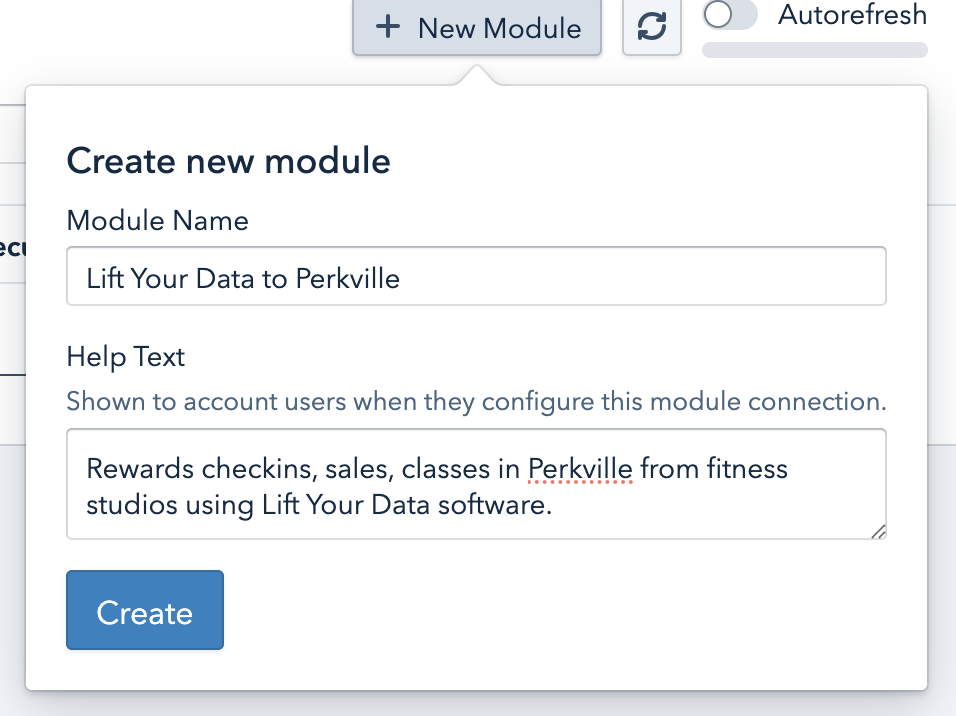
To create a new module, navigate to the "Modules" top-level tab at the top of your Middle subdomain.
Then click "+ New Module" and pick a good module name and help text. You'll probably want to include the name of each app you'd like to be included in the module integration.
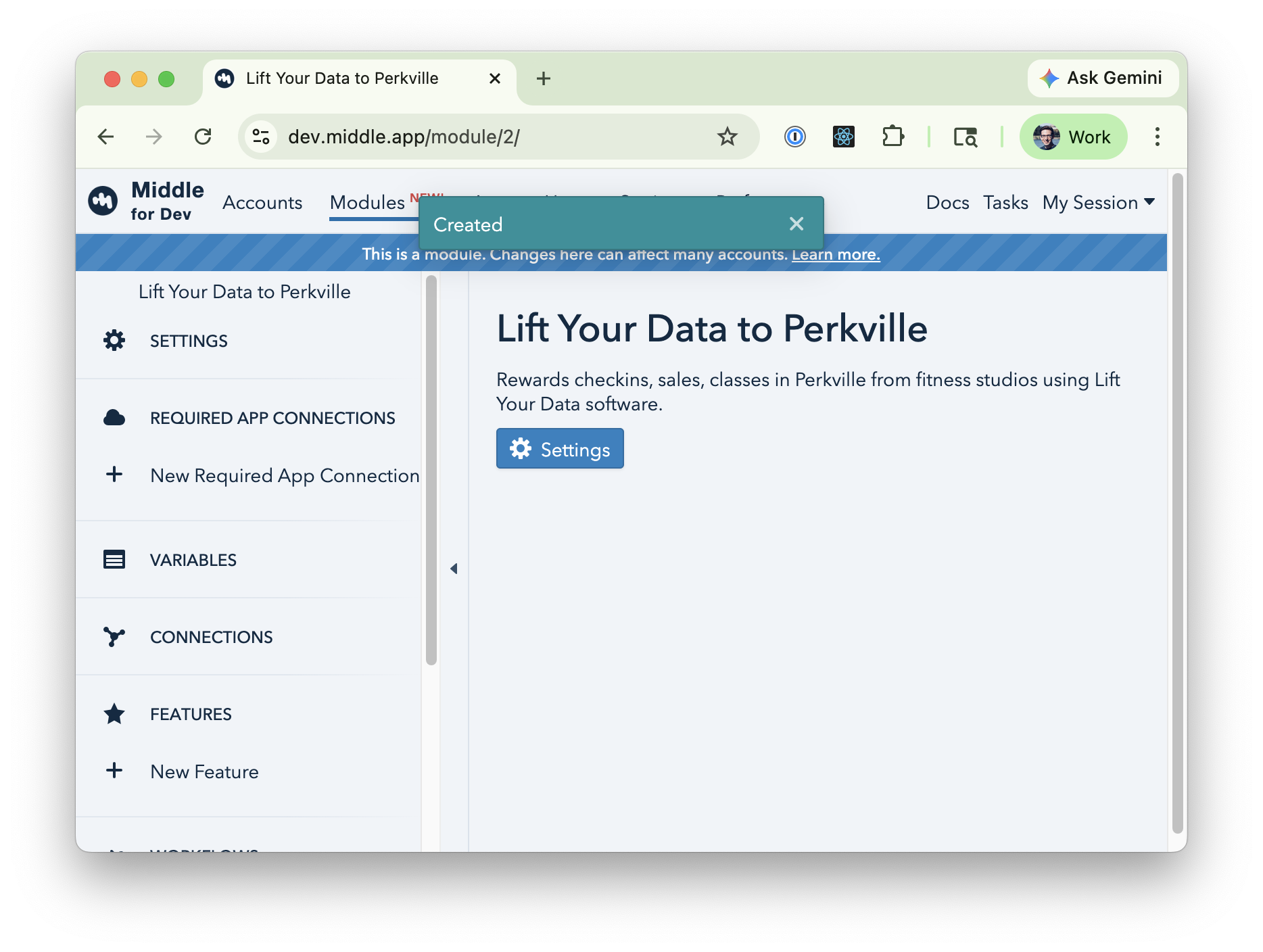
Click Create and you'll be brought to your new module
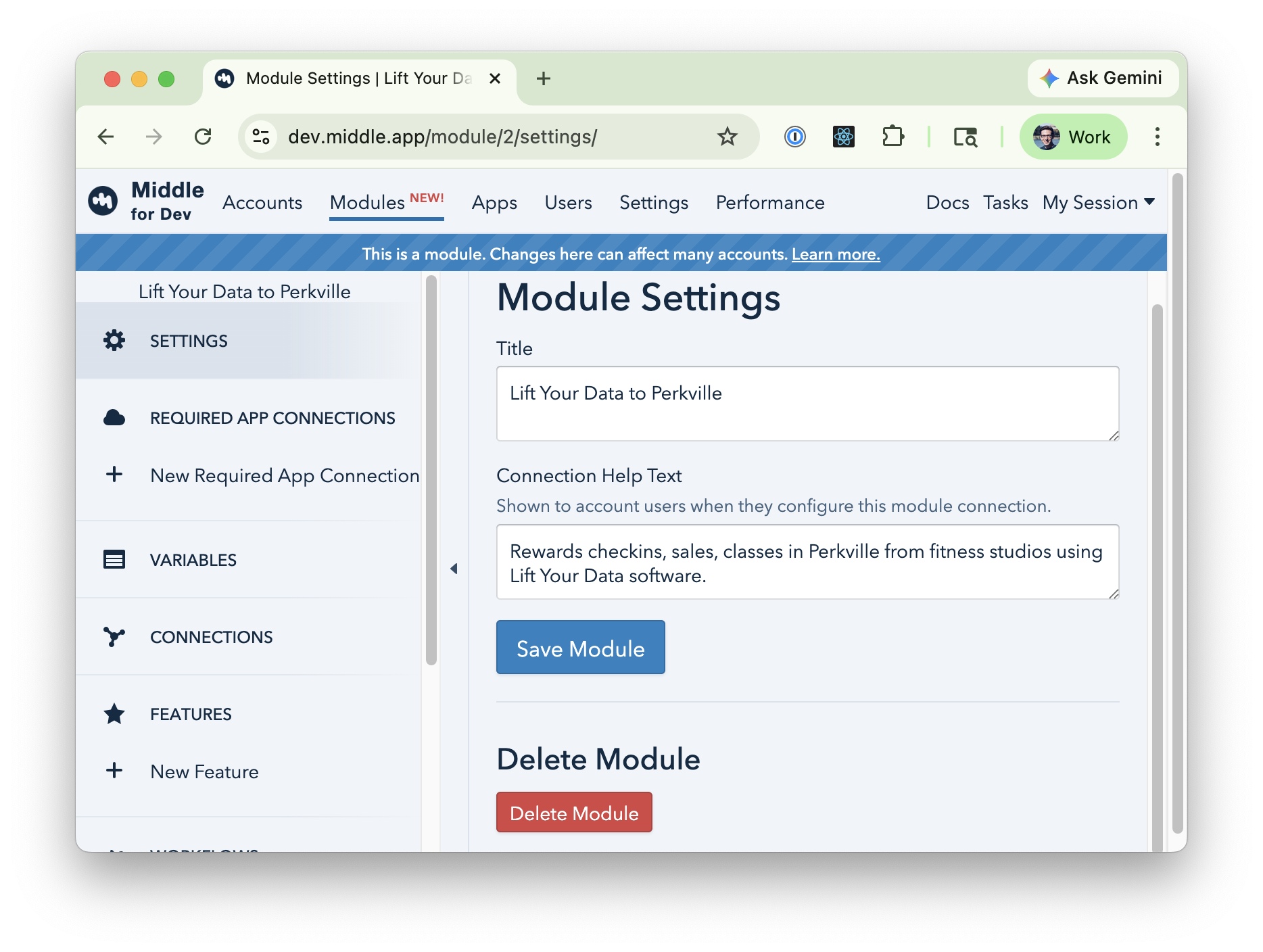
If you'd like to update the name or help text of a module, just click the blue "Settings" button on the module root page.
### Deleting a module
To delete a module, click the blue "Settings" button and find the "Delete module" button.
### Required app connections
When an account connects to a module, the account will need to have a connection to whatever apps you require. For example, if you wanted to make a module representing an integration from ABC Fitness to Hubspot, you'd want ABC Fitness and Hubspot as required app connections.
Modules don't own any user data; they just define behavior. Modules are used across many accounts. Accounts own the data, modules just act on that data.
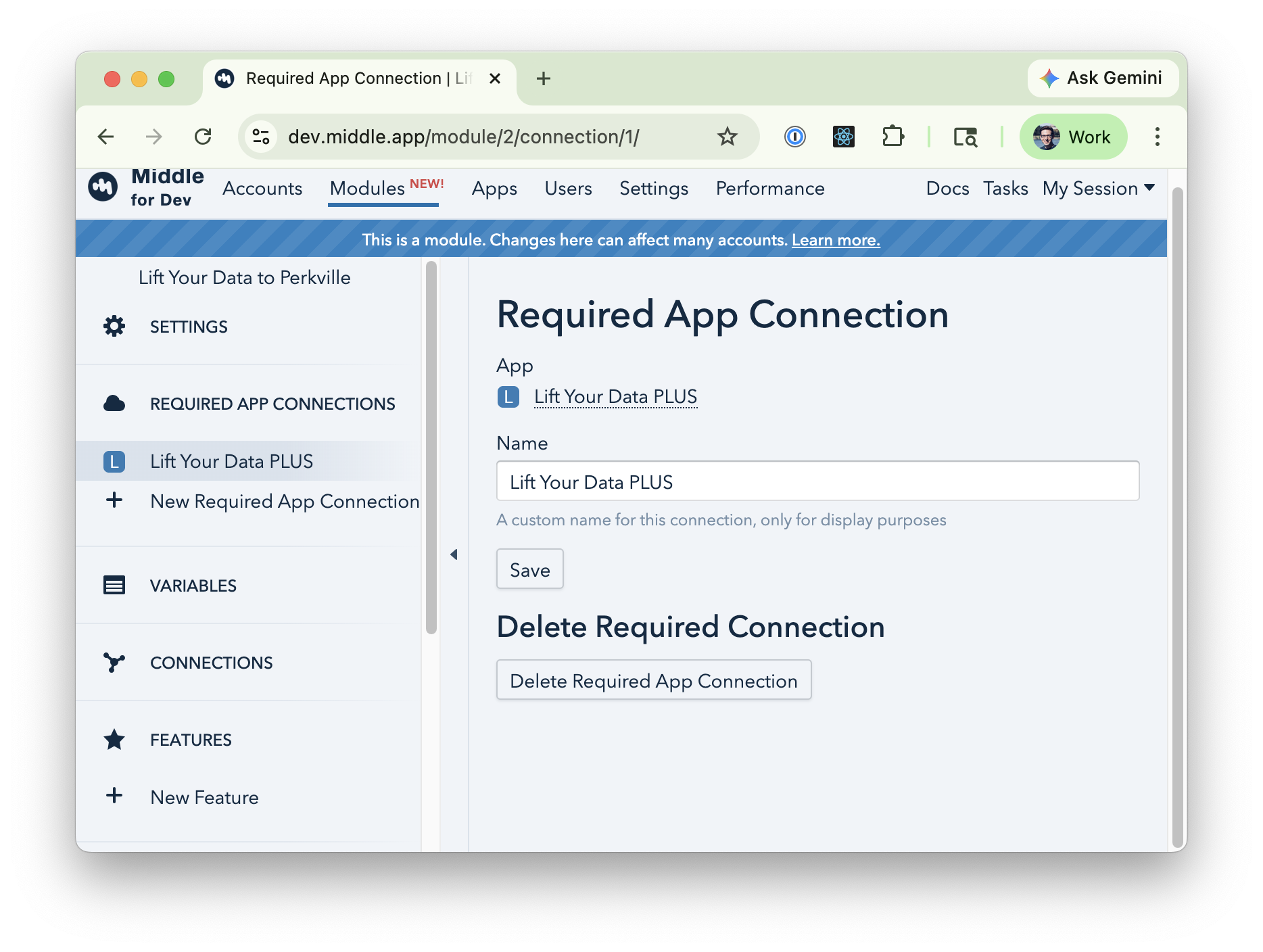
To create a new required app connection, just click the "+ New required app connection" button on the left side of a module. Follow the prompt to select an app.
There's not much to manage on a required app connection other than the name. The name of the app connection mostly isn't relevant, except in the case where you have two connections to the same app.
Be sure to set up a required app connection for any data sources and any actions you want to use in workflows. If you don't see the actions you expect in a workflow, you might not have the correct required app connections set up.
### Features
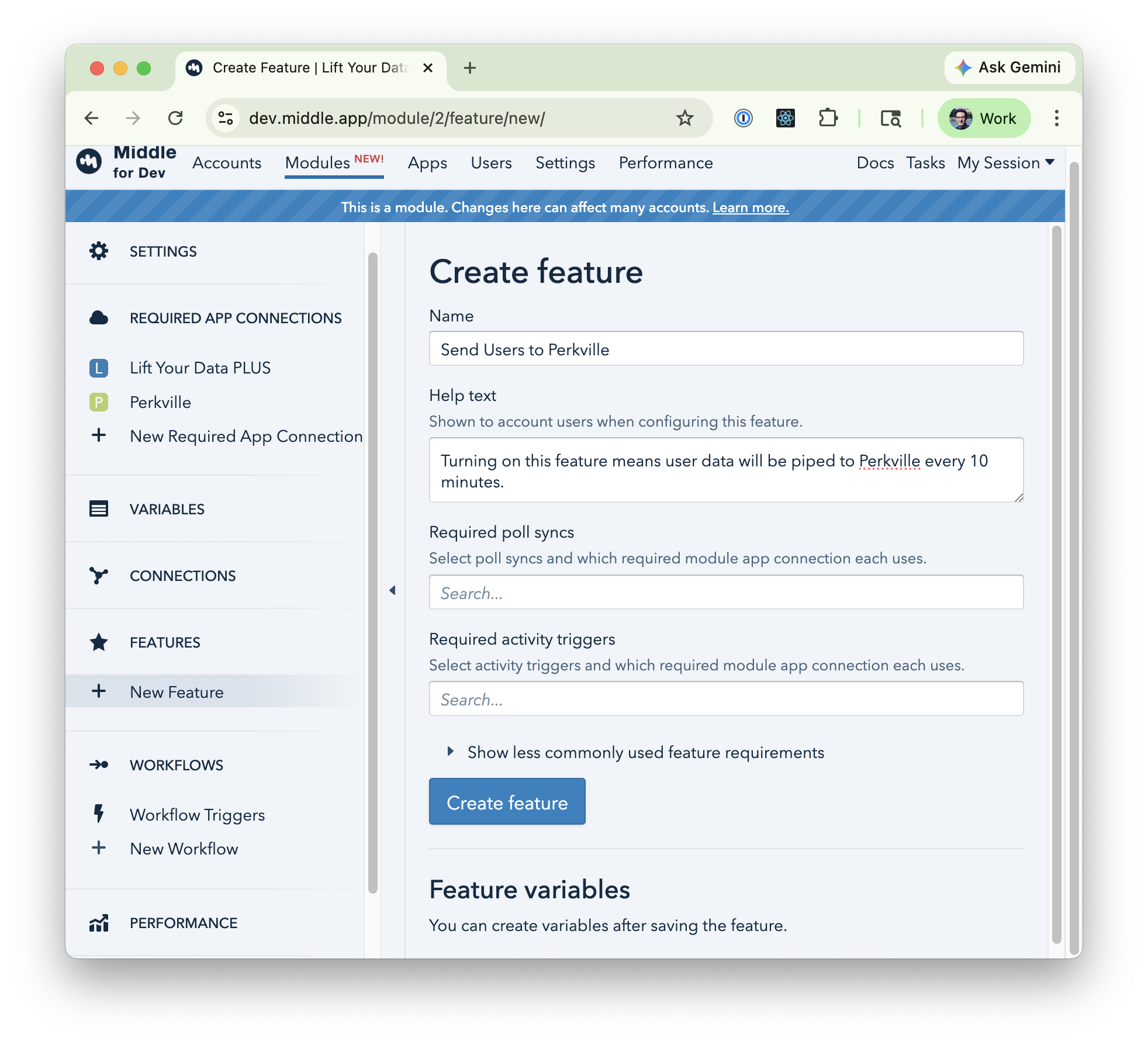
Module features represent a single, specific integration. A good module feature should be small, allowing accounts to enable or disable just that specific part of the module. Good examples might be, "syncs Users from A to B," or "sync Sales from A to B."
To create a new feature, just click the "+ New feature" button on the left side of a module.
Technically, features are a bundle of *required settings plus feature variables*. A connected account will be prompted to turn on the given settings, and fill out any feature variables.
Feature settings include:
* **Required poll syncs.** These are sources of data. This means that these particular syncs or sources of data must be enabled by a connected account.
* **Required activity triggers.** These are workflows that are triggered when records are created or updated. In a new module, you won't see any triggers here to choose from; to set these up, find the "Workflow triggers" button on the left.
* There are also less commonly used feature requirements, including:
* **Required scheduled triggers.** These are workflows that are run on a regular basis, such as every day or hour or once per month, etc.
* **Required disabled deletion.** These record types must have data deletion disabled. This is mainly useful for any workflow trigger that depends on looking at a previous version of that record. [By default](/middle-docs/data-deletion.md), Middle automatically deletes records after they are left unused for 30 days.
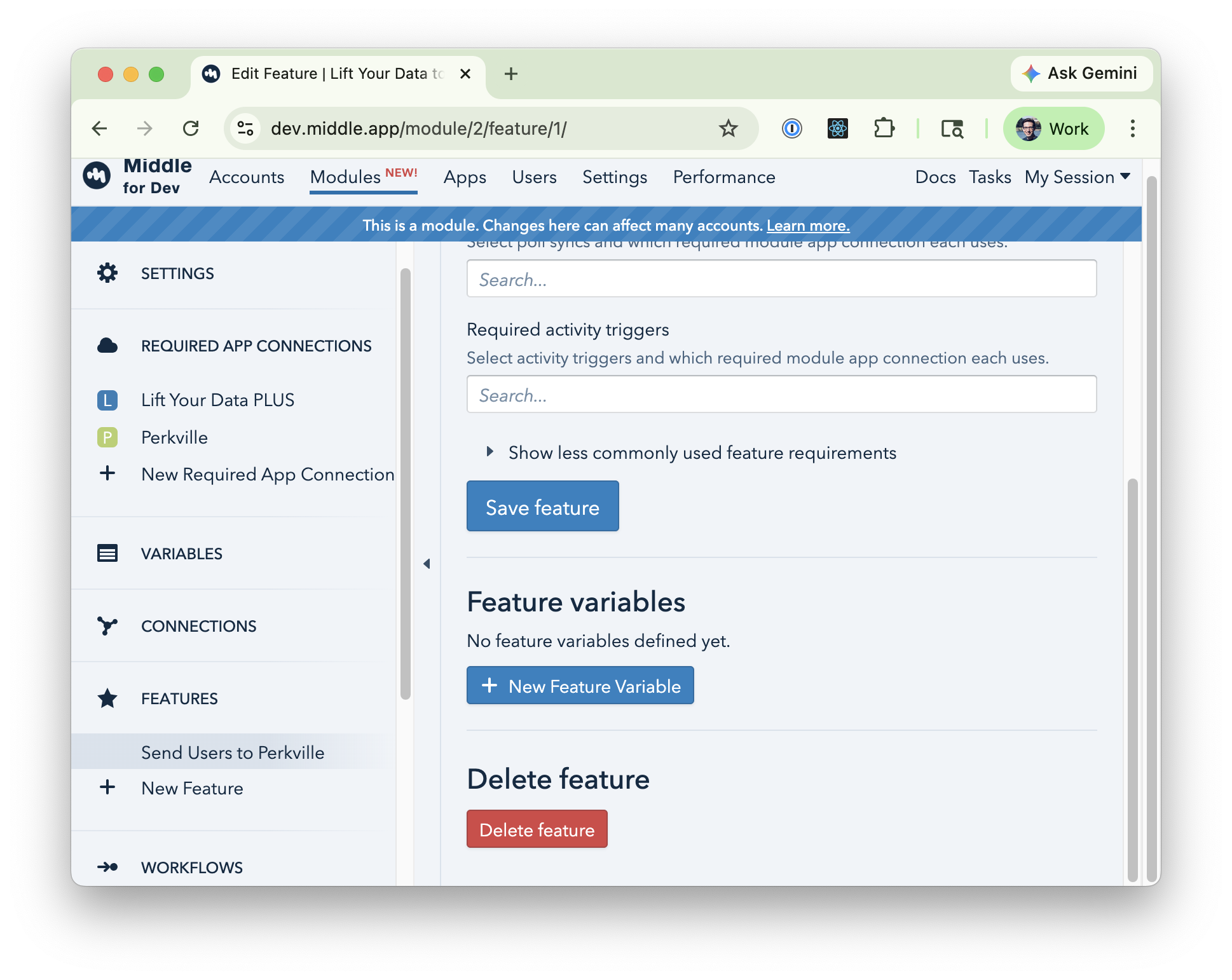
**Feature variables** are variables that we prompt a user to fill out when setting up a feature. These variables can be referenced in workflows. Their keys must be unique across an entire module.
Common use cases for feature variables might be a unique ID for the destination of data that can't easily be grabbed from the raw data itself. For example, Perkville might want a Perk ID when awarding points for a specific class of point reward.
### Variables
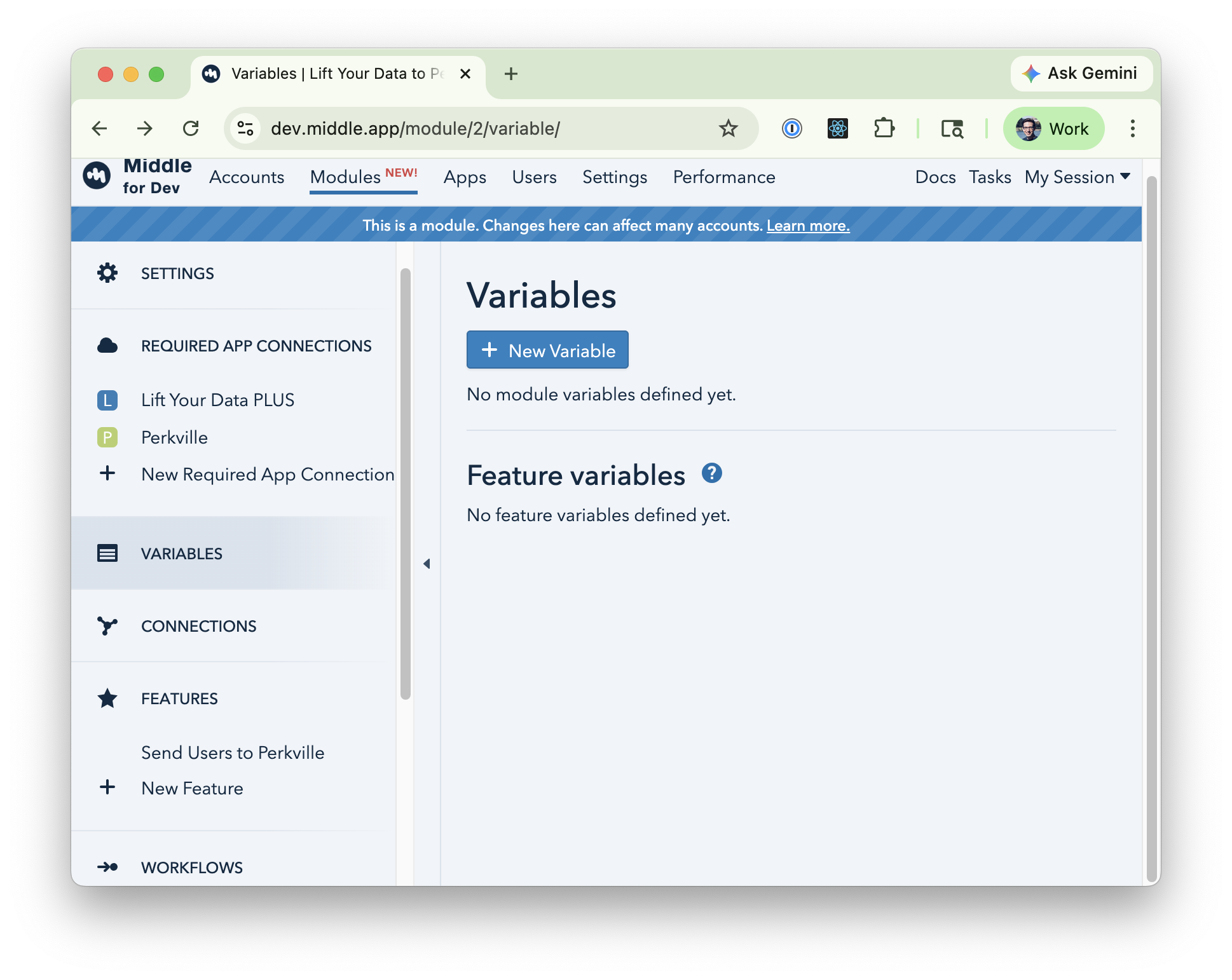
Modules allow you to define variables, and variables can be used in workflows.
Variables can be defined on the module-level, or feature-level. But, this only governs when we prompt a user to fill out a variable; they all share the same namespace. For this reason, all variables have to have unique keys.
#### Creating a variable
To create a new module-level variable, navigate to "Variables" on the left, and then click "+ New variable".
To create a feature-level variable, navigate to the feature you want to add a variable to, and click "+ New variable".
#### Variable attributes
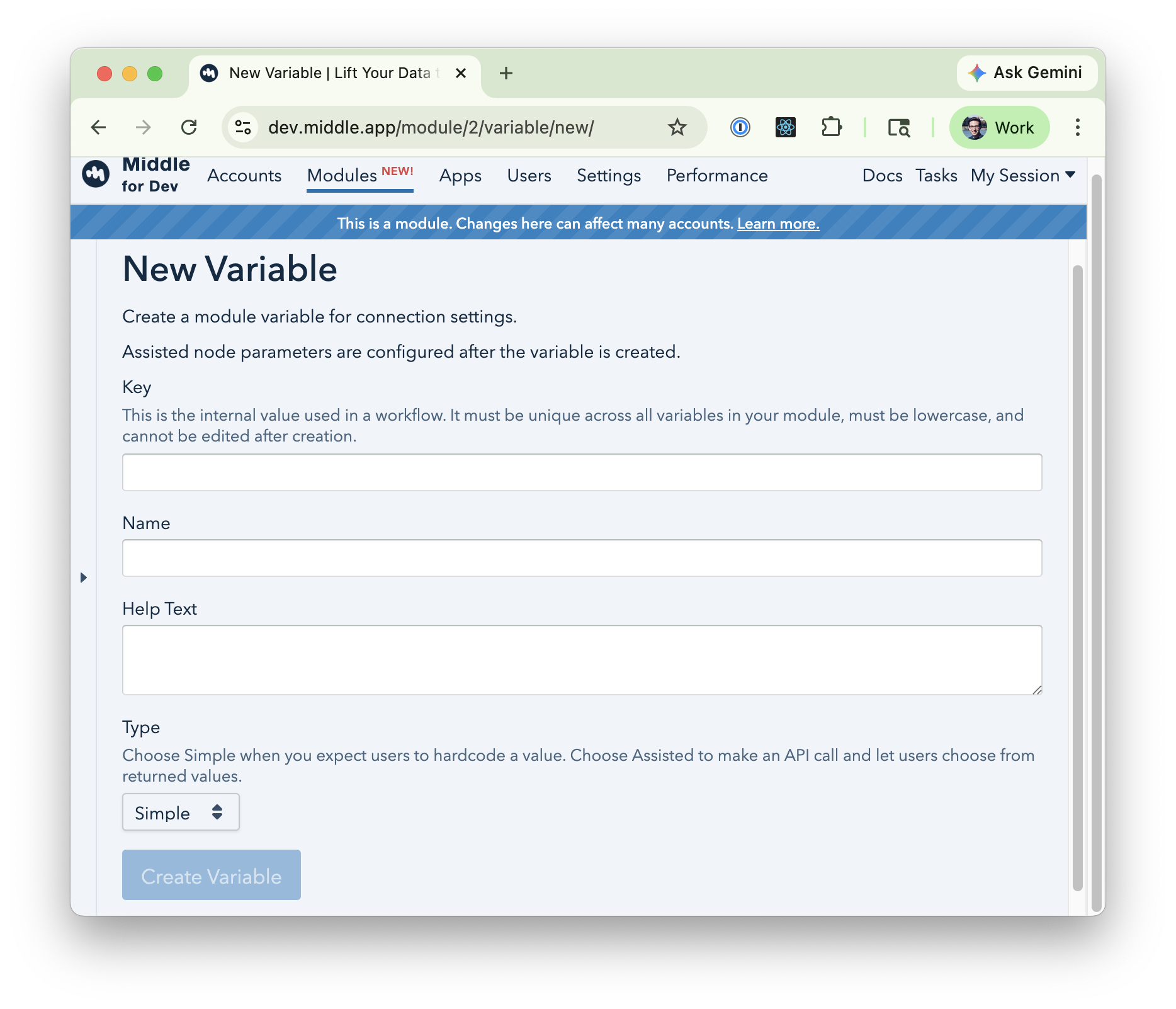
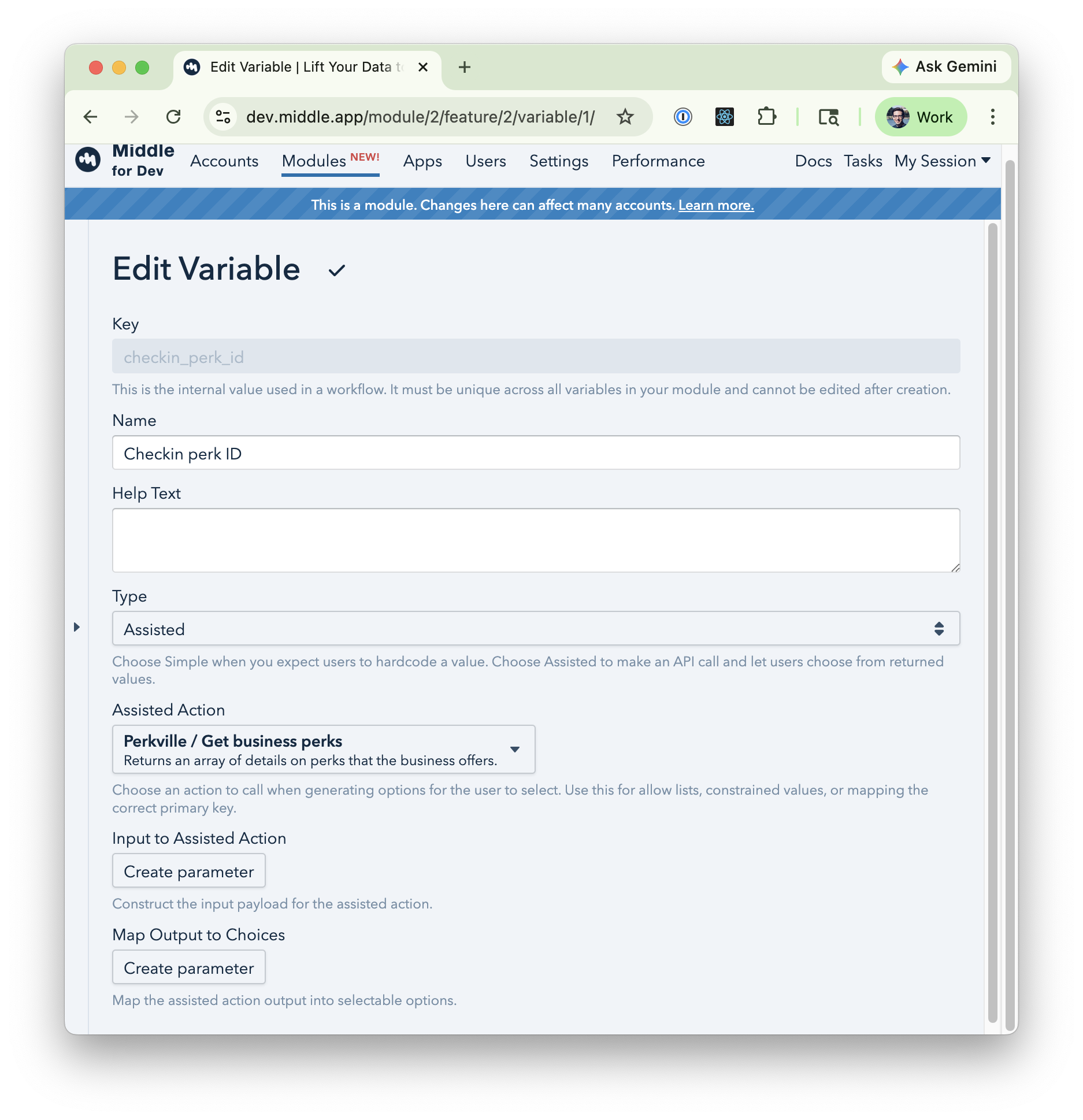
Variables have a key, name, help text, and type.
* **Key** is an internal name used in workflows, used in its internal and JSON representation to power logic. It cannot change, must be unique across all variables, and has a few other restrictions.
* **Name** is the user-facing name. It should be a short, accurate label.
* **Help text** is shown under the name.
* **Type** allows you to choose between a "simple" variable, where a value is entered directly, or an "assisted variable"
#### Assisted Variables
Assisted variables allow users to choose from a list of values. The available options come from an [Action call](/middle-docs/apps/actions.md).
This allows you to generate options from an API call. This is super useful for internal IDs.
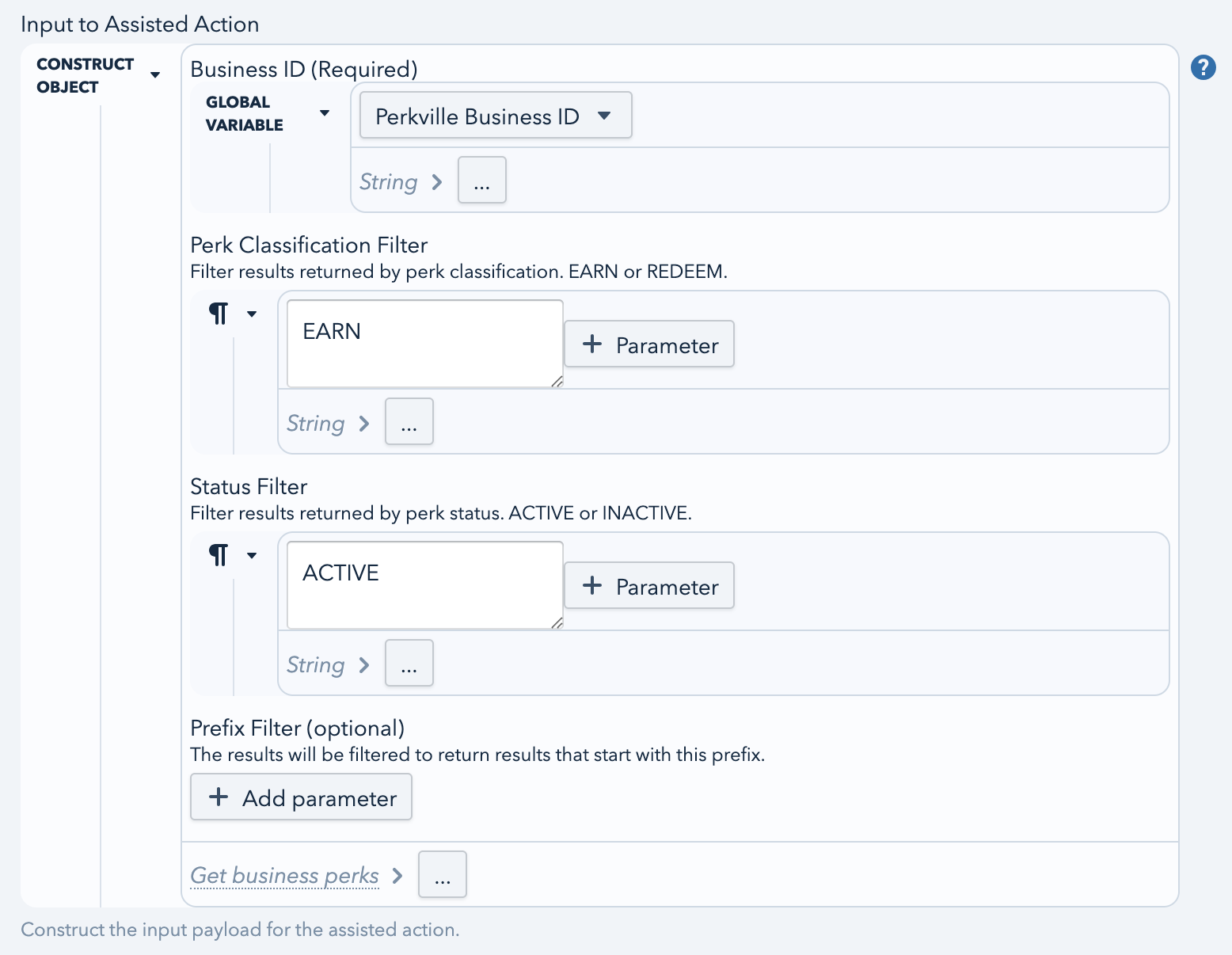
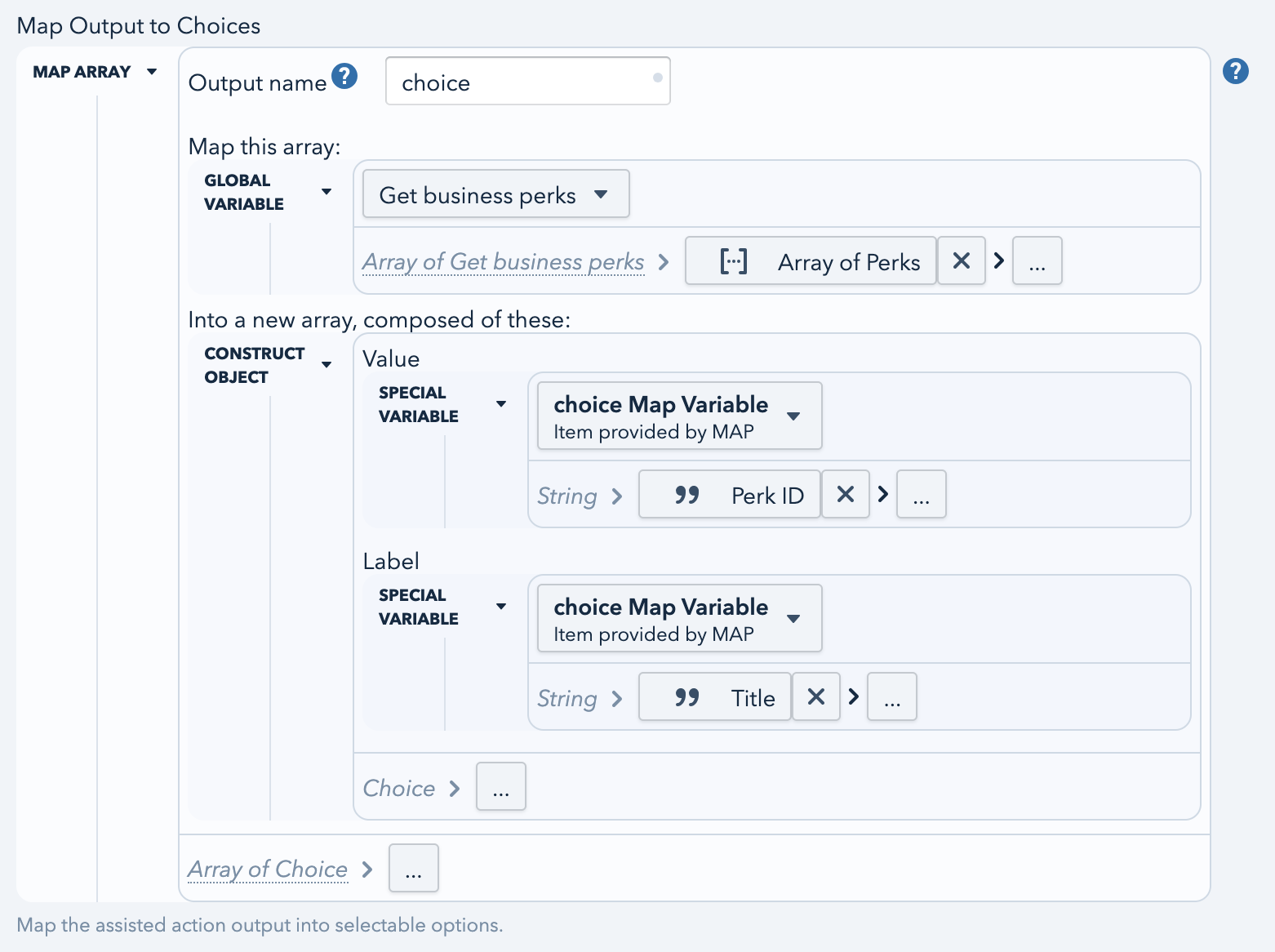
Assisted Actions need two extra fields configured: Input and output.
**Input to assisted action** generates the input to the action, and can use any module-level variables that have been defined for a module.
**Map output to choices** generates the choices that are actually rendered to the user, using the output from the action to do so.
### Workflows and triggers
Workflows and their triggers work in almost the exact same way as accounts. The major differences are:
* In modules, workflows and triggers can reference variables defined in the module's variables section. These values are set by an account owner when connecting the module.
* Workflows and triggers both point to the *required app connection* placeholder rather than an actual app connection, in places where an app connection is ordinarily needed. The app connection is picked by an account owner when connecting to a module, and is used at runtime.
For more on workflows, see our [workflow documentation](/middle-docs/accounts/workflow-steps.md) and [workflow trigger documentation.](/middle-docs/accounts/workflow-triggers.md)
---
# Agent Instructions
This documentation is published with GitBook. GitBook is the documentation platform designed so that both humans and AI agents can read, navigate, and reason over technical content effectively. Learn more at gitbook.com.
## Querying This Documentation
If you need additional information that is not directly available in this page, you can query the documentation by asking a question.
Perform an HTTP GET request on the following URL with the `ask` and `goal` query parameters:
```
GET https://docs.middle.app/middle-docs/modules.md?ask=&goal=
```
`ask` is the immediate question: it should be specific, self-contained, and written in natural language.
`goal` is what the user is ultimately trying to achieve, the reason they need the answer. Sharing it helps GitBook give you a better, more relevant answer. A goal is most helpful when it describes the outcome the user wants rather than restating the question. For example, with `ask=how do I create an API token`, a goal like `automate deployments from our CI pipeline` lets GitBook tailor the answer to that use case.
The response will contain a direct answer to the question and relevant excerpts and sources from the documentation.
Use this mechanism when the answer is not explicitly present in the current page, you need clarification or additional context, or you want to retrieve related documentation sections.